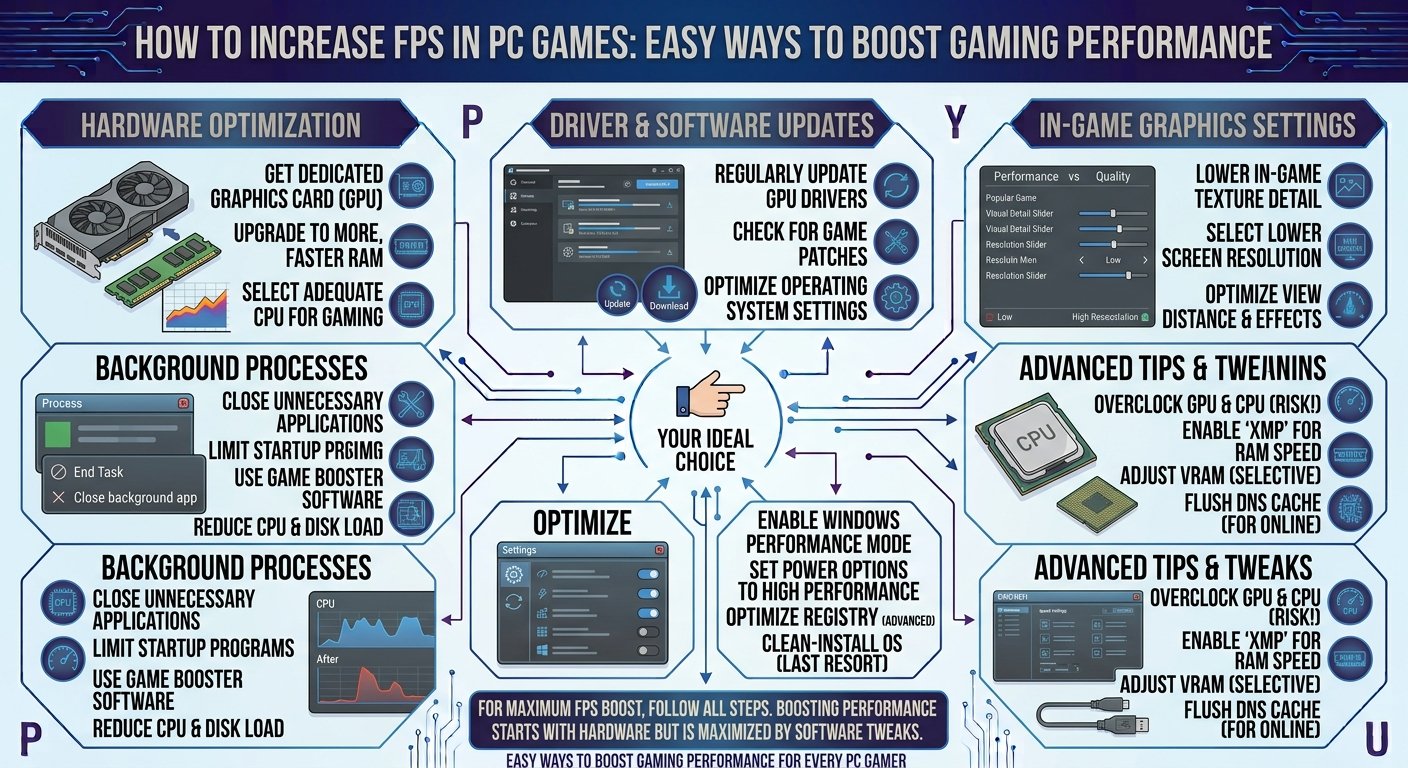
How to Increase FPS in PC Games: Easy Ways to Boost Gaming Performance
Getting smooth and consistent performance is one of the most important parts of PC gaming. Whether you enjoy competitive FPS titles, open-world adventures, racing games, or demanding RPGs, low FPS can make gameplay feel slow, choppy, and frustrating. Fortunately, you do not always need to purchase a new gaming PC to improve performance.
There are many ways to increase FPS in PC games by optimizing graphics settings, updating drivers, improving Windows performance, managing background applications, and making better use of your existing hardware. Some changes can provide noticeable improvements within minutes, while others can help maintain stable performance over longer gaming sessions.
In this guide, we will explore practical and easy ways to boost gaming performance and increase FPS on a PC.
1. Lower Your In-Game Graphics Settings
One of the easiest ways to increase FPS is to reduce demanding graphics settings inside your game. Modern games often include options such as shadows, reflections, ambient occlusion, texture quality, anti-aliasing, effects quality, and view distance. These settings can significantly affect your graphics card’s workload.
Start by lowering the settings that have the biggest performance impact. Shadows, reflections, volumetric effects, and advanced lighting can often be reduced without making the game look dramatically worse. You can keep important settings such as textures at a higher level if your graphics card has enough VRAM. Finding the right balance between visual quality and performance can give you a much smoother gaming experience.
2. Reduce Your Game’s Resolution
Resolution has a major impact on FPS because your GPU must render more pixels at higher resolutions. For example, playing at 1440p generally requires more graphics processing power than playing at 1080p.
If your FPS is consistently low, try lowering the game’s resolution. Moving from 1440p to 1080p can provide a substantial performance improvement on a mid-range or older graphics card. Although the image may not look as sharp, the increased FPS can make gameplay much smoother, especially in fast-paced competitive games.
3. Use DLSS, FSR, or XeSS When Available
Many modern PC games support technologies such as NVIDIA DLSS, AMD FSR, and Intel XeSS. These technologies render the game at a lower internal resolution and then use advanced upscaling techniques to produce a higher-resolution image.
If your game supports one of these technologies, enabling the appropriate option can significantly increase FPS while maintaining good image quality. Start with a quality-focused mode and move toward a performance mode if you need additional FPS. This can be particularly useful when playing graphically demanding games at 1440p or 4K.
4. Update Your Graphics Drivers
Graphics drivers play an important role in gaming performance. GPU manufacturers regularly release driver updates that can improve compatibility, fix bugs, and optimize performance for new games.
Make sure your graphics card is using a recent and stable driver. If you experience sudden performance problems after installing a new driver, you can also investigate whether a previous stable version works better with your particular game. Keeping your drivers updated is one of the simplest maintenance steps for a gaming PC.
5. Close Unnecessary Background Applications
Applications running in the background can consume CPU, RAM, storage resources, and sometimes GPU resources. Programs such as web browsers, launchers, cloud synchronization tools, video editors, and other utilities can reduce the resources available to your game.
Before starting a demanding game, close applications that you do not need. You can also use Windows Task Manager to identify programs consuming significant CPU or memory resources. Avoid ending processes that you do not recognize, but unnecessary applications can often be safely closed to free up system resources.
6. Enable Game Mode in Windows
Windows includes gaming-related features designed to prioritize gaming workloads. Game Mode can help Windows focus system resources on your game instead of unnecessary background activity.
Open Windows Settings and look for the Gaming section. From there, check the Game Mode settings and make sure the feature is enabled. While the FPS improvement may vary depending on your PC, enabling gaming-related Windows optimizations can help create a more consistent experience.
7. Set Your GPU to Prefer Maximum Performance
Graphics card software usually provides power and performance settings that can affect how your GPU behaves during gaming. If your system is aggressively prioritizing energy efficiency, the GPU may not maintain higher performance levels when needed.
Check your graphics card’s control software and look for performance or power-management settings. For games where maximum performance is the priority, selecting a performance-focused option may help maintain higher GPU clocks. Keep in mind that higher performance can also mean higher power consumption and temperatures.
8. Improve Your PC’s Cooling
Temperature can have a major effect on gaming performance. If your CPU or GPU becomes too hot, it may reduce its clock speed to protect the hardware. This process, known as thermal throttling, can result in lower and less consistent FPS.
Make sure your PC has adequate airflow. Clean dust from fans and filters, ensure that intake and exhaust fans are functioning correctly, and avoid blocking ventilation areas. If temperatures remain unusually high, checking the CPU cooler, GPU cooling system, and thermal paste may also be worthwhile.
9. Upgrade Your RAM When Necessary
RAM can affect gaming performance, particularly when your system does not have enough available memory. Modern games can use significant amounts of RAM, especially when combined with browsers, communication applications, recording software, and other programs.
If your PC frequently runs out of available memory, upgrading your RAM can improve overall system responsiveness and reduce stuttering. For a modern gaming PC, having enough RAM for your games and background applications is generally more important than simply choosing extremely high memory speeds.
10. Install Games on an SSD
Storage speed can influence loading times and, in some games, asset streaming performance. Traditional hard drives are much slower than modern SSDs.
If your game is installed on an older HDD, moving it to an SSD can make loading screens significantly faster and may help reduce certain forms of stuttering in games that continuously load assets. An SSD will not magically double FPS in every game, but it can make the overall gaming experience feel much faster and more responsive.
11. Disable Unnecessary Visual Effects
Windows itself includes visual effects that consume a small amount of system resources. On powerful modern PCs, these effects usually have little impact, but older systems can benefit from reducing unnecessary animations and visual features.
You can adjust Windows performance settings to prioritize performance over appearance. This will not usually create a massive FPS increase, but combining several small optimizations can help older or lower-end gaming PCs perform more efficiently.
12. Optimize Your Game’s Texture Settings
Texture quality can have a different impact depending on your graphics card’s available VRAM. Extremely high textures can cause performance problems if your GPU does not have enough memory to handle them comfortably.
If you experience stuttering or sudden drops in FPS, try reducing texture quality by one level. On the other hand, if your GPU has plenty of VRAM, you may be able to keep textures relatively high while lowering more demanding settings such as shadows and reflections.
13. Reduce Shadow Quality
Shadows are among the graphics settings that can have a significant effect on performance. High-quality dynamic shadows require additional rendering work, particularly in games with large environments and many light sources.
If you need more FPS, reduce shadow quality from ultra to high, medium, or low. In many games, the visual difference between high and ultra shadows is relatively small compared with the performance difference. This makes shadows an excellent setting to adjust when optimizing a game.
14. Disable Motion Blur and Unnecessary Effects
Motion blur, film grain, depth of field, chromatic aberration, and similar effects are mostly visual preferences. Some players enjoy them because they create a cinematic appearance, while others prefer a sharp and clear image.
Disabling unnecessary effects can sometimes provide a small performance improvement while making the game easier to see. Competitive players often prefer a cleaner image because visual clarity can be more important than cinematic effects.
15. Optimize Your Game’s Launch Settings
Some PC games and platforms allow players to use launch options that influence how the game starts. Certain launch settings can improve compatibility or allow advanced configuration, although their usefulness varies significantly between games.
Avoid copying random launch commands from the internet without understanding what they do. Some old optimization tricks no longer provide benefits and can even cause problems. Focus on settings that are supported by the game developer or clearly documented for your specific game.
16. Check CPU and GPU Usage
Monitoring hardware usage can help you understand why FPS is low. If your GPU is operating close to full utilization while the CPU has plenty of available capacity, the GPU may be the main performance limitation.
If the GPU is not heavily utilized while one or more CPU cores are working extremely hard, the game may be CPU-limited. Understanding this difference helps you make smarter upgrades and settings changes instead of randomly lowering every graphics option.
17. Turn Off Unnecessary Overlays
Game overlays from communication applications, launchers, recording tools, and graphics software can consume system resources. Although modern overlays are usually optimized, they can occasionally contribute to performance problems or conflicts.
If you are experiencing FPS drops, crashes, or stuttering, try disabling unnecessary overlays one at a time. This makes it easier to determine whether a particular background feature is affecting your gaming performance.
18. Keep Your PC Free From Unwanted Software
Unwanted programs can run in the background and consume valuable system resources. Malware, unnecessary utilities, browser extensions, and other unwanted software can contribute to poor performance.
Use trusted security software and keep Windows updated. Remove applications you no longer need and avoid installing suspicious programs. A clean and well-maintained PC generally provides a better foundation for gaming performance.
19. Choose the Right FPS Target
More FPS is not always necessary if your monitor cannot display the additional frames effectively. For example, if you use a 60Hz monitor, targeting a stable 60 FPS can make more sense than pushing your system to 150 FPS at the cost of unstable performance.
If you have a 120Hz, 144Hz, 165Hz, or higher-refresh-rate monitor, higher FPS can provide smoother motion and better responsiveness. The ideal target depends on your hardware, monitor, and the type of games you play.
20. Consider Hardware Upgrades
If you have tried software optimization and your FPS is still too low, your hardware may simply be limiting performance. The graphics card is often the most important component for increasing FPS in graphically demanding games, although the CPU can become the limiting factor in CPU-heavy games.
Before buying new hardware, identify your current bottleneck. If the GPU is consistently at maximum usage, a stronger graphics card may provide the biggest improvement. If the CPU is limiting performance, upgrading the processor may make more sense. This approach helps you spend money where it can actually improve your gaming experience.
Quick FPS Optimization Checklist
If you want to increase FPS quickly, start with these simple steps:
- Lower demanding graphics settings.
- Reduce game resolution if necessary.
- Enable DLSS, FSR, or XeSS when supported.
- Update your graphics drivers.
- Close unnecessary background applications.
- Enable Windows Game Mode.
- Keep your PC properly cooled.
- Clean dust from fans and filters.
- Install demanding games on an SSD.
- Reduce shadow and reflection quality.
- Disable unnecessary visual effects.
- Check CPU and GPU usage.
- Disable unnecessary overlays.
- Keep Windows and games updated.
- Upgrade hardware when your system is genuinely limited.
Final Thoughts
Increasing FPS in PC games does not always require an expensive upgrade. Many performance improvements can come from simple changes to graphics settings, Windows configuration, drivers, cooling, and background applications. The key is to identify what is actually limiting your system and make targeted adjustments.
For competitive gaming, prioritize stable FPS, low input latency, and clear visuals. For single-player games, you may prefer a balance between image quality and smooth performance. Every gaming PC is different, so the best settings will depend on your processor, graphics card, RAM, monitor, and the game you are playing.
By following these FPS optimization tips, you can often make your PC games run smoother and get better performance from the hardware you already own. Instead of immediately spending money on a new PC, take the time to optimize your current setup and find the right balance between graphics quality, FPS, and gaming performance.