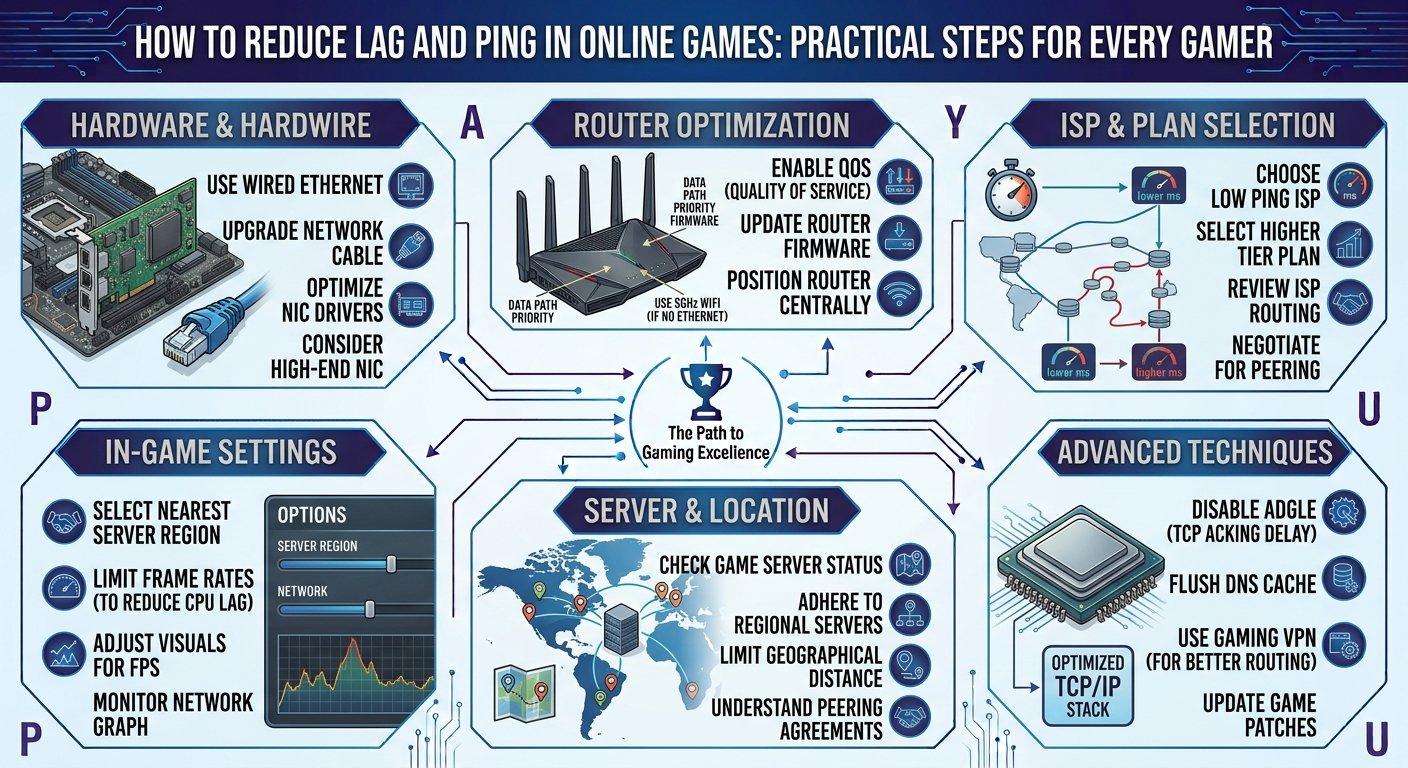
How to Reduce Lag and Ping in Online Games: Complete Guide for Gamers in 2026
Online gaming is all about fast reactions, accurate movements, and smooth gameplay. Whether you are playing a competitive shooter, racing game, battle royale, MMORPG, or multiplayer sports game, a stable internet connection can make a major difference. Unfortunately, lag, high ping, packet loss, and sudden connection drops can turn an enjoyable gaming session into a frustrating experience.
If your character freezes, movements feel delayed, bullets register late, or you suddenly get disconnected from a match, your internet connection or network setup may be responsible. The good news is that many common gaming connection problems can be reduced with a few simple changes.
In this guide, we will explain how to reduce lag and ping in online games, improve network stability, optimize your gaming setup, and enjoy a smoother online gaming experience in 2026.
1. Understand What Ping and Lag Mean
Before fixing lag, it is important to understand what ping actually means. Ping is generally measured in milliseconds (ms) and represents the time it takes for data to travel between your gaming device and the game server and back. A lower ping usually means faster communication between you and the server. For online gaming, a ping below around 50 ms is generally considered excellent, while 50–100 ms can still provide a good experience for many games. Higher values can create noticeable delays, especially in competitive games.
Lag is a broader term that describes delays, interruptions, freezing, rubber-banding, or other problems that affect gameplay. High ping is one possible cause, but lag can also result from packet loss, unstable Wi-Fi, network congestion, poor server performance, or hardware issues. Understanding the difference can help you identify the right solution instead of changing settings randomly.
2. Use a Wired Ethernet Connection
One of the simplest ways to improve your gaming connection is to use an Ethernet cable instead of Wi-Fi. Wireless connections can be affected by distance, walls, interference from other devices, and network congestion. These issues may cause inconsistent latency or occasional packet loss during online matches.
An Ethernet connection provides a direct connection between your gaming PC or console and your router. This can make your connection more stable and reduce unexpected spikes in ping. If your router is close enough to your gaming setup, connecting directly with Ethernet is one of the first improvements you should consider.
For competitive gaming, a wired connection is especially useful because consistency is often more important than having the highest possible internet speed.
3. Move Your Gaming Device Closer to the Router
If using Ethernet is not practical, try moving your gaming device closer to the Wi-Fi router. The greater the distance between your device and router, the more likely the wireless signal is to become weaker.
Walls, floors, furniture, and electronic devices can also interfere with wireless signals. Placing the router in a central and elevated location can improve coverage throughout your home. Avoid hiding the router inside cabinets or placing it behind large objects.
A stronger and more consistent Wi-Fi signal can help reduce connection drops and unpredictable ping spikes during gaming sessions.
4. Stop Background Downloads and Streaming
Background applications can consume a significant amount of bandwidth while you are gaming. Windows updates, cloud storage synchronization, game downloads, video streaming, and other applications may use your internet connection without you realizing it.
Before starting an important online match, close unnecessary applications and pause large downloads. If other people in your household are watching high-resolution videos, downloading files, or using bandwidth-heavy applications, your gaming connection may also suffer.
Reducing unnecessary network activity gives your game more room to communicate with its server and can help maintain a more stable connection.
5. Restart Your Router Regularly
Routers operate continuously and can sometimes experience temporary performance problems. A simple restart can refresh the network connection and resolve certain connectivity issues.
If you notice that your ping has suddenly become much higher than usual, restart your router and modem if you use separate devices. Turn them off, wait briefly, and then power them back on.
Although restarting your router will not magically improve your internet plan, it can sometimes resolve temporary connection problems, especially when the network has been running continuously for a long period.
6. Choose the Closest Game Server
Many modern online games allow players to select a server or region. When this option is available, choose the server that is geographically closest to you.
The physical distance between your location and the game server affects how quickly data can travel. A server located much farther away can produce higher latency even if your internet connection is otherwise excellent.
For example, if a game automatically connects you to a distant region, switching to a nearby server may noticeably reduce your ping. Always check the game’s server or region settings if your latency seems unusually high.
7. Upgrade Your Internet Plan When Necessary
Sometimes the problem is simply that your current internet connection cannot handle the demands of your household. This does not necessarily mean gamers need extremely high download speeds. Online games often require relatively modest bandwidth, but a busy household with multiple users can create congestion.
If several people are streaming video, attending video meetings, downloading large files, and gaming at the same time, your available bandwidth can become limited.
If you frequently experience problems during periods of heavy household internet usage, consider upgrading your connection or choosing a plan with better upload performance and network capacity. However, remember that a faster download speed does not automatically guarantee lower ping.
8. Enable Quality of Service on Your Router
Some modern routers include a feature called Quality of Service, commonly known as QoS. This feature can prioritize certain types of network traffic over others.
Depending on your router, you may be able to prioritize your gaming PC, console, or gaming traffic. This can help prevent other devices from consuming most of the available bandwidth while you are playing.
QoS can be particularly useful in busy households where multiple devices are connected simultaneously. Router interfaces differ, so check your router’s documentation to determine whether QoS is available and how it should be configured.
9. Keep Your Network Drivers Updated
Your gaming device relies on network hardware and software to communicate with the internet. Outdated network drivers can sometimes cause connectivity problems, compatibility issues, or reduced performance.
On a gaming PC, check for updates for your Ethernet or Wi-Fi adapter through your system’s driver management tools. If your motherboard or network adapter manufacturer provides updated drivers, installing the appropriate version may help improve stability.
Drivers are not always responsible for high ping, but keeping important system components updated is a good general practice for maintaining a reliable gaming PC.
10. Reduce Wi-Fi Interference
Wireless interference is a common reason for unstable gaming connections. Other wireless networks, Bluetooth devices, household electronics, and multiple connected devices can sometimes interfere with Wi-Fi performance.
If your router supports both 2.4 GHz and 5 GHz or newer wireless bands, experiment with the available options. Higher-frequency Wi-Fi bands can often provide better performance at shorter distances, while lower-frequency bands can have better range.
Your best choice depends on your home environment, router, device, and distance from the router. The goal is to use the wireless connection that provides the most stable performance rather than simply choosing a particular band automatically.
11. Check for Packet Loss
Ping is not the only measurement that matters in online gaming. Packet loss can be even more frustrating because it means some data packets fail to reach their destination or return correctly.
Packet loss can cause characters to teleport, actions to register late, sudden freezes, and rubber-banding. You may experience these issues even when your average ping appears reasonable.
Many games display network statistics that allow you to monitor packet loss and latency. If packet loss continues, investigate your local network, router, Ethernet cable, Wi-Fi connection, or internet service provider.
12. Avoid Using a VPN While Gaming Unless Necessary
A VPN can be useful for privacy and other legitimate purposes, but it can sometimes increase gaming latency because your traffic may travel through an additional server before reaching the game server.
If your VPN server is far away from your actual location or the game’s server, your ping may increase significantly. For this reason, test your game with and without a VPN to determine whether it is affecting your connection.
If you specifically need a VPN for gaming, choose a nearby server and compare the results. The best setup depends on your location, VPN provider, and the game’s server infrastructure.
13. Update Your Game and Gaming Platform
Game developers regularly release updates that fix bugs, improve networking, and address performance issues. Running an outdated version of a game can sometimes lead to connection problems or compatibility issues.
Make sure your game is updated to the latest available version. You should also keep your gaming platform and important system software updated.
If a connection problem begins immediately after an update, however, the issue may be related to the game’s servers or software rather than your own network. In such cases, checking the game’s official status information can help determine whether other players are experiencing the same problem.
14. Close Unnecessary Background Applications
Your computer can run dozens of processes in the background while you are gaming. Some applications may consume CPU resources, memory, disk activity, or network bandwidth.
Before launching a competitive game, close applications you do not need. Web browsers with many open tabs, cloud synchronization tools, streaming software, file-sharing applications, and automatic update programs can all contribute to system or network load.
A cleaner gaming environment can help your PC dedicate more resources to the game and reduce potential sources of performance problems.
15. Use the Right DNS Settings
The Domain Name System, or DNS, converts website and service names into IP addresses. Changing DNS servers is sometimes recommended as a way to improve internet performance.
However, DNS changes do not directly reduce the physical latency between your device and a game server once you are connected. They may improve how quickly certain network addresses are resolved or help with specific connectivity problems, but they should not be treated as a guaranteed gaming ping solution.
If you experiment with DNS settings, compare your actual gaming performance before and after the change. Keep the configuration that provides the most reliable results for your network.
16. Check Your Router and Ethernet Cable
Old or damaged networking equipment can contribute to connection problems. If you use Ethernet, inspect the cable for visible damage and make sure it is securely connected at both ends.
Your router also plays an important role in network performance. Older hardware may struggle with a large number of connected devices or modern internet connections.
If your router frequently disconnects, becomes extremely hot, or requires constant restarting, it may be worth discussing replacement options with your internet provider or considering a newer router.
17. Test Your Internet Connection Outside the Game
When you experience high ping, do not immediately assume that the game is responsible. Test your connection using other services and devices.
If everything else works normally but one particular game has extremely high latency, the issue may be related to that game’s server, routing, or matchmaking region.
If multiple services are slow or unstable, your local network or internet provider may be the more likely source of the problem. Identifying whether the issue affects one game or your entire connection can save you a lot of troubleshooting time.
18. Avoid Peak Network Congestion
Internet performance can sometimes change depending on the time of day. If many users in your area are online simultaneously, network congestion may affect your connection depending on your internet service.
If your gaming performance is consistently worse during certain hours, record your ping and connection stability at different times. This can help you determine whether the problem follows a specific usage pattern.
If congestion appears to be coming from your internet provider’s network, contact customer support and explain the issue. Providing information about when the problem occurs can make troubleshooting easier.
19. Optimize Your Gaming PC
Not every gaming problem is caused by internet connectivity. A computer experiencing low FPS, overheating, CPU limitations, or GPU problems can sometimes feel like it is lagging even when the network connection is fine.
Monitor your FPS, CPU usage, GPU usage, temperatures, and network statistics separately. If your FPS suddenly drops while your ping remains stable, the problem may be related to your PC rather than your internet.
Keeping graphics drivers updated, managing temperatures, closing unnecessary applications, and adjusting graphics settings can help maintain smoother gameplay.
20. Contact Your Internet Service Provider
If you have tried the common solutions and continue experiencing high ping or packet loss, your internet service provider may need to investigate the connection.
Contact support and explain the exact problem. Tell them whether the issue happens on multiple devices, whether it occurs at specific times, and whether you experience packet loss or frequent disconnections.
Your provider may be able to test the line, identify network problems, replace faulty equipment, or investigate routing issues. Sometimes the cause is outside your home and cannot be fixed through gaming settings alone.
Quick Checklist to Reduce Gaming Lag and Ping
If you want a simple checklist, start with these steps:
- Use Ethernet instead of Wi-Fi when possible.
- Restart your router and modem.
- Choose the closest available game server.
- Stop background downloads and streaming.
- Close unnecessary applications.
- Reduce Wi-Fi interference.
- Enable QoS if your router supports it.
- Check for packet loss.
- Keep your network drivers updated.
- Update your game and gaming platform.
- Test your connection outside the game.
- Avoid unnecessary VPN connections.
- Check your Ethernet cable and router.
- Monitor FPS separately from network latency.
- Contact your ISP if the problem continues.
Final Thoughts
Learning how to reduce lag and ping in online games can make a significant difference in your gaming experience. You do not always need an expensive internet package or premium gaming equipment to improve your connection. Simple changes such as using Ethernet, selecting a nearby server, stopping background downloads, improving Wi-Fi placement, and restarting your router can often solve common problems.
Remember that download speed, ping, packet loss, and FPS are different things. A fast internet connection does not automatically guarantee low latency, and low ping cannot compensate for severe FPS drops or hardware limitations.
The best approach is to identify exactly what is causing the problem and then apply the appropriate solution. With a stable network, optimized gaming setup, and properly configured system, you can enjoy smoother and more responsive online gaming in 2026.